5-Note Range
FreeRead the jump between notes inside a small five-note space. A gentle place to start.
 Interval Hero
Learning solo? Interval Hero trains your eyes to read the jump between notes, so sight-reading stops feeling like decoding one note at a time.
It guides you one small step at a time.
Later on, you play the note into the mic.
Pass a level and the next one opens.
You’re learning solo, so your account is yours to run.
On game.interval-hero.app, choose Create free account. You confirm you're 16+ — a younger learner should join through a teacher instead.
Optional, but it's the only way to reset a lost password yourself. Add one now, save trouble later.
The main thing to do: open Game Mode and keep going. It starts easy, one new idea at a time.
Later levels ask you to play the note, so keep it within reach.
Home opens after you sign in. It shows what to do today and how your week is going. Get back to it any time with 🏠 Home in the menu.
Four big buttons at the top: Practice, Game Mode, My Progress and Weekly Challenge (How it works on a free account).
A ring fills as you answer questions today. Tap Change to aim for 10, 20, 30 or 40 a day.
Practise on days in a row to earn a badge at 3, 7, 14, 30, 50, 100, 200 and 365 days.
Until Game Mode is finished, it points to your next level. After that, it sets two short tasks from your weakest areas.
Your Weekly Challenge and today’s Ranked Practice points (Pro). An unfinished Ranked Practice session shows Resume.
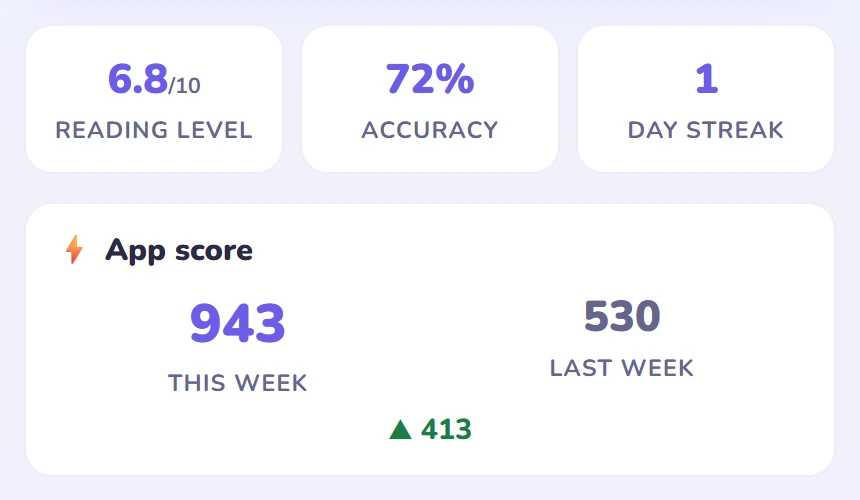
Reading Level, accuracy and day streak. Once you’ve unlocked App score, this week’s points sit beside last week’s.
Pass one small level and the next opens. No route to plan — just keep going.
Read notes in a small five-note space.
Follow bigger jumps from note to note.
Find your landmark notes on the staff.
Find the nearest guide note, then count to the note.
Read against a timer.
Read it, then play it on your piano.
Read a whole chord shape at once.
Game Mode walks you through these in order. Once passed, practise any of them on their own tab.
Read the jump between notes inside a small five-note space. A gentle place to start.
Each new note starts where the last one ended — read the direction and size of the jump.
Learn landmark notes so you always have somewhere reliable to count from, in both clefs.
For any note, put a guide note near it (no more than a 5th away) on its exact line or space and press Check, then choose the interval from that guide note. In the last level the C is never drawn, just like real sheet music. It is how you find the first note on the piano.
Read the note, then play it on your piano — the mic listens and checks the pitch; MIDI also works.
Answer as many as you can before the timer ends. Good once you already know the material.
Read a whole chord shape — root position and its inversions — instead of one note at a time.
In Play the Note, you answer by playing on your piano instead of tapping.
Your browser will ask, the first time — choose Allow. Declined by mistake? Turn it back on in your browser's site settings.
Place the phone, tablet or laptop close to the keys so the mic hears you clearly.
Read the note, then play it. Interval Hero listens and tells you if it matches.
Only your first answer counts. Fixing a wrong note afterwards is good practice, but doesn't change the score.
Four notes were right on the very first try.
You fixed number 3. That’s useful learning; the score just stays at 80%.
Most sessions open by asking Sound on or Sound off, plus treble or bass clef for Chain, 5-Note Range and Chord Inversions.
A popup shows your first-try score (in Game Mode, the level result). View score breakdown opens a table of what you got right, weakest first; Hide folds it away.
Under the breakdown, Review mistakes replays the intervals you missed as a quick drill. Guide Notes and chord misses have no interval to replay, so they’re left out.
Climb through ranks — Rookie, Apprentice, Adept and beyond — grown from your accuracy, questions answered, and practice streak. Top ranks also need all seven levels.
An optional global leaderboard with two sides, Ranked and App score. You only appear with a display name if you choose one and opt in, which is off by default.
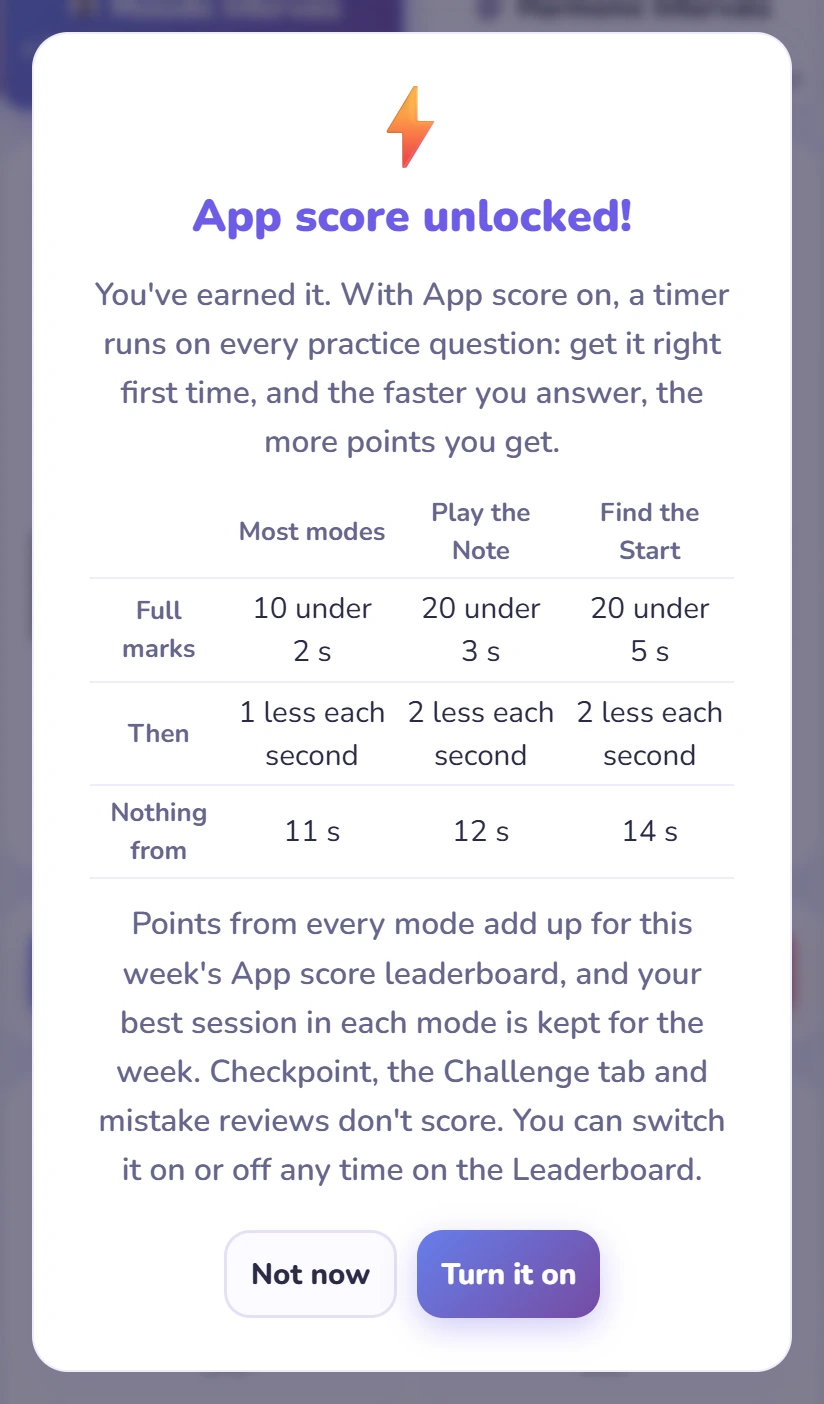
Once you’ve finished the path, App score turns everyday practice into points. Get it right first time, and the faster you answer, the more you get. It’s a Pro feature, and you choose whether to switch it on.
App score opens when all three are true. Until then, a countdown on Home shows what
App score opens when all three are true. Until then, the Leaderboard’s App score side shows what’s left.
rsquo;s left, with See what youApp score opens when all three are true. Until then, the Leaderboard’s App score side shows what’s left.
rsquo;ll unlock for a preview.Every level passed, all seven.
5 hours of practice, or 2,500 questions answered.
A Reading Level of 8.5 or more (see My Progress).
The moment you qualify, this popup appears: Turn it on or Not now. Change your mind any time with the switch on the Leaderboard’s App score side.
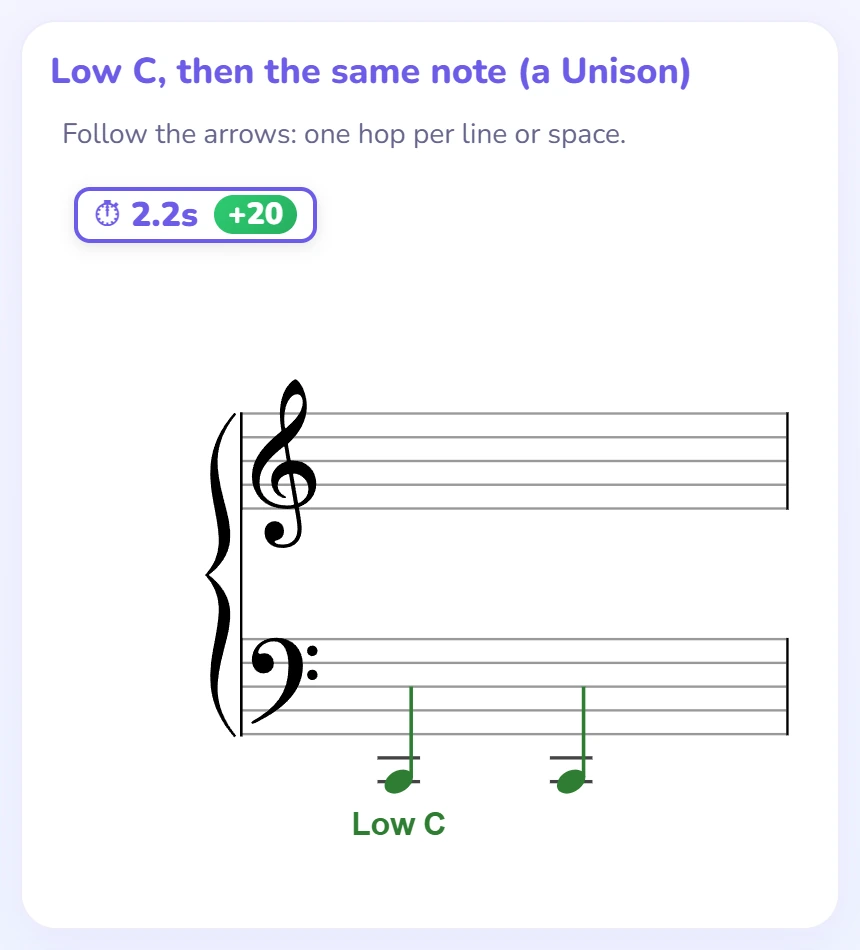
With App score on, a clock counts up in the top-left of the staff on every question. Answer right first time and your points appear beside it, like ⏱ 3.4s +16. A wrong first try or Show Answer scores 0, and the clock pauses while a popup covers the question.
Find the Start answered in 2.2 seconds: full marks, +20.
| Most modes | Play the Note | Find the Start | |
|---|---|---|---|
| Full marks | 10 under 2 s | 20 under 3 s | 20 under 7 s |
| Then | 1 less each second | 2 less each second | 2 less each second |
| Nothing from | 11 s | 12 s | 14 s |
Most modes means 5-Note Range, Chain, Guide Notes and Chord Inversions. Play the Note and Find the Start score double: you find the key, or count from a guide note, before you answer. Checkpoint, the Challenge tab and mistake reviews don’t score.
Weeks run Monday to Sunday (Malaysia/Singapore time). Points and bests start fresh each Monday, and last week’s stay on show to beat.
A ⚡ Points card under the staff keeps the running total.
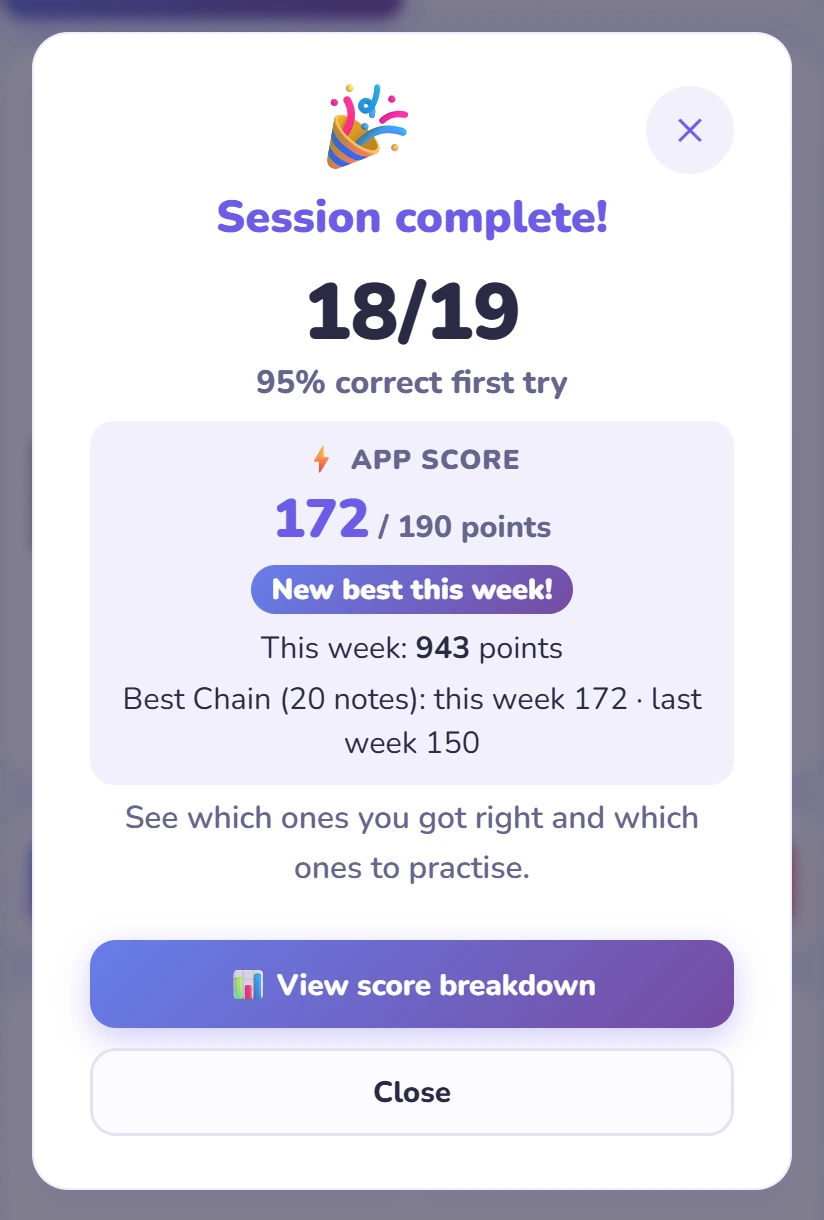
The session popup shows your points out of the maximum, this week’s total, and your best for that mode this week and last week.
This week’s points beside last week’s, with the difference.
A ⚡ App score tab under Progress over time: points per day for each mode, this week against last week.
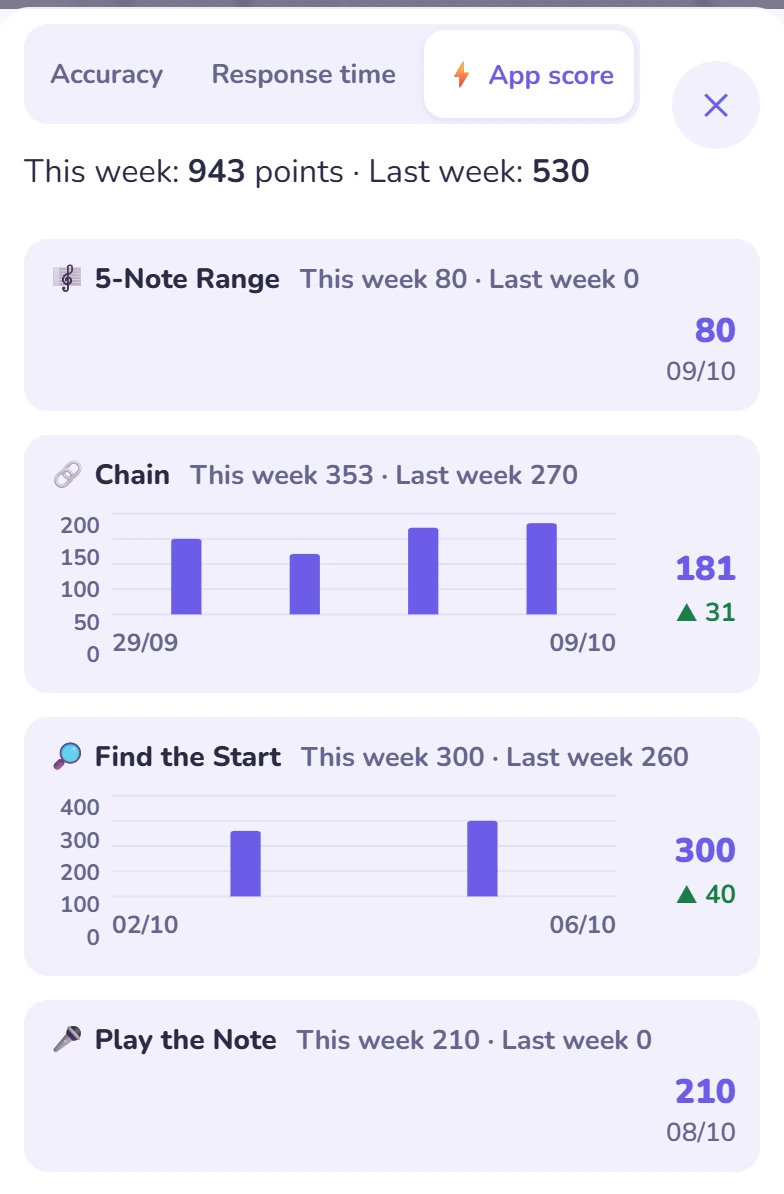
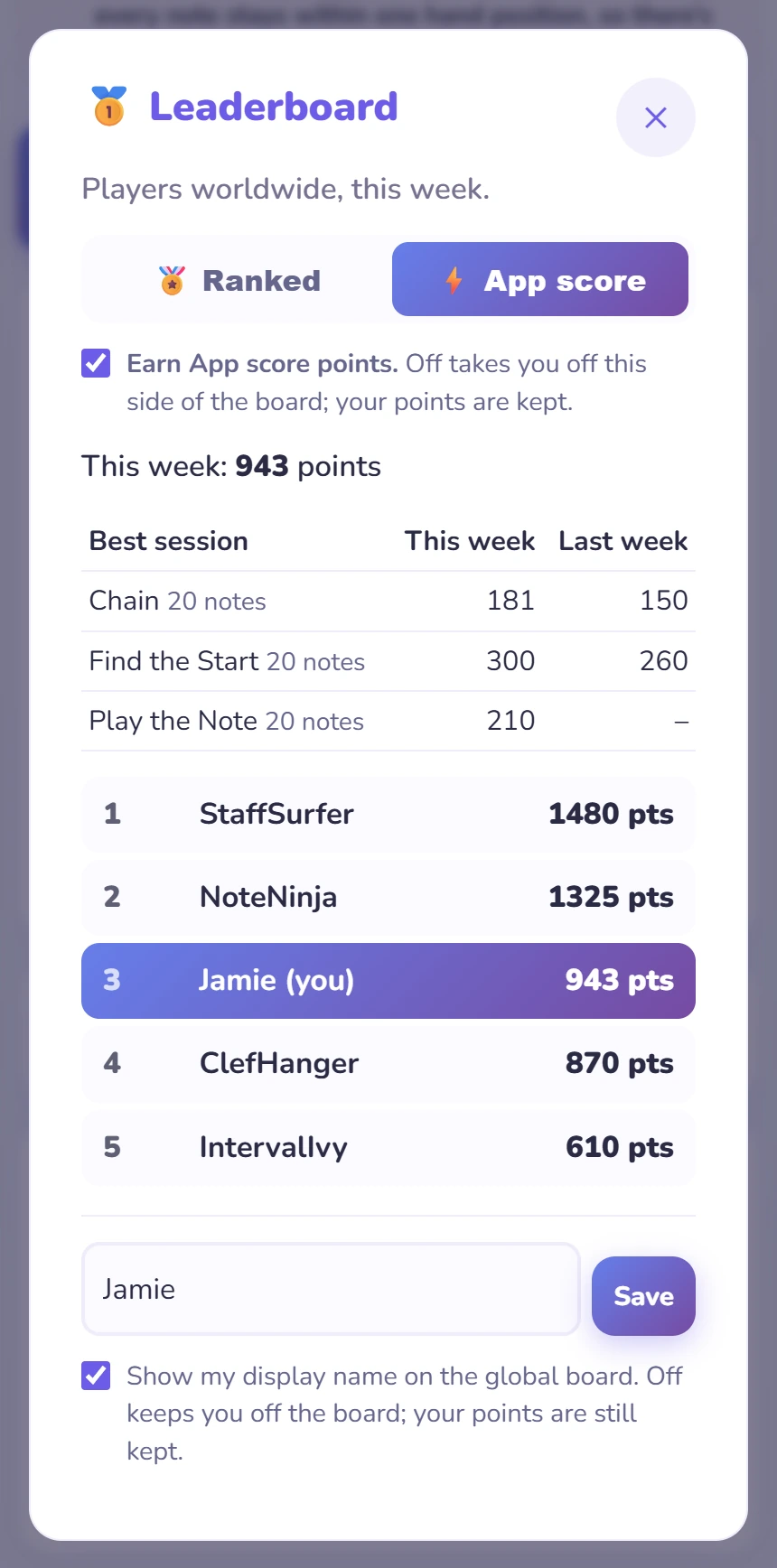
The App score side ranks opted-in players worldwide on this week’s points, and lists your best session in each mode (10, 20 or 50 notes). Switch it off and you leave that side; your points are kept.
You can get a long way for free. Pro removes the limits and opens the rest of the path.
Levels 1–3 are free, with a 40-question daily allowance outside Game Mode (Game Mode itself isn't capped).
Removes the daily cap, opens Levels 4–7 as you unlock them, and adds App score once you’ve finished the path. New subscribers get a 7-day free trial.
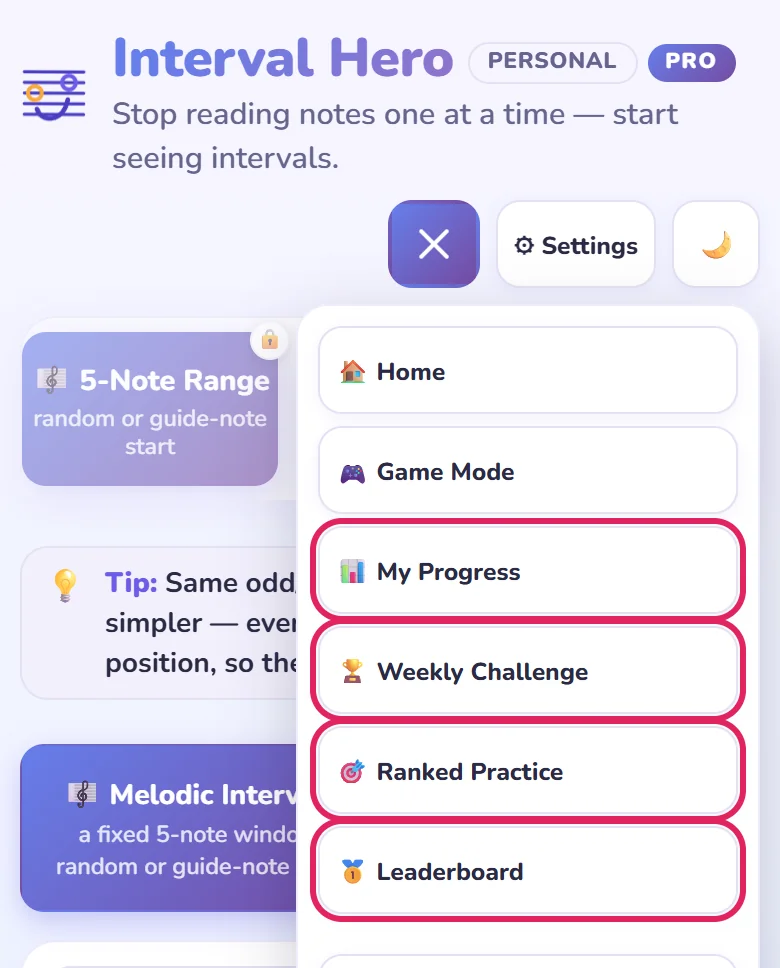
Four things under the three-line menu button that show how you're doing and let you measure yourself against other players. Weekly Challenge, Ranked Practice and the Leaderboard need Pro; My Progress is on every account.
Open the menu and the four items sit together, right under Game Mode.
Tap the three-line button at the top right, then any of the four ringed items. A locked item shows a padlock: that account needs Pro.
A record of every finished session, updated the moment it ends. Reading Level and the skills breakdown are Pro; the rest is on every account.
Six figures: Reading Level out of 10, first-try accuracy, total questions, sessions, day streak and average response time, plus one line of advice on what's next.
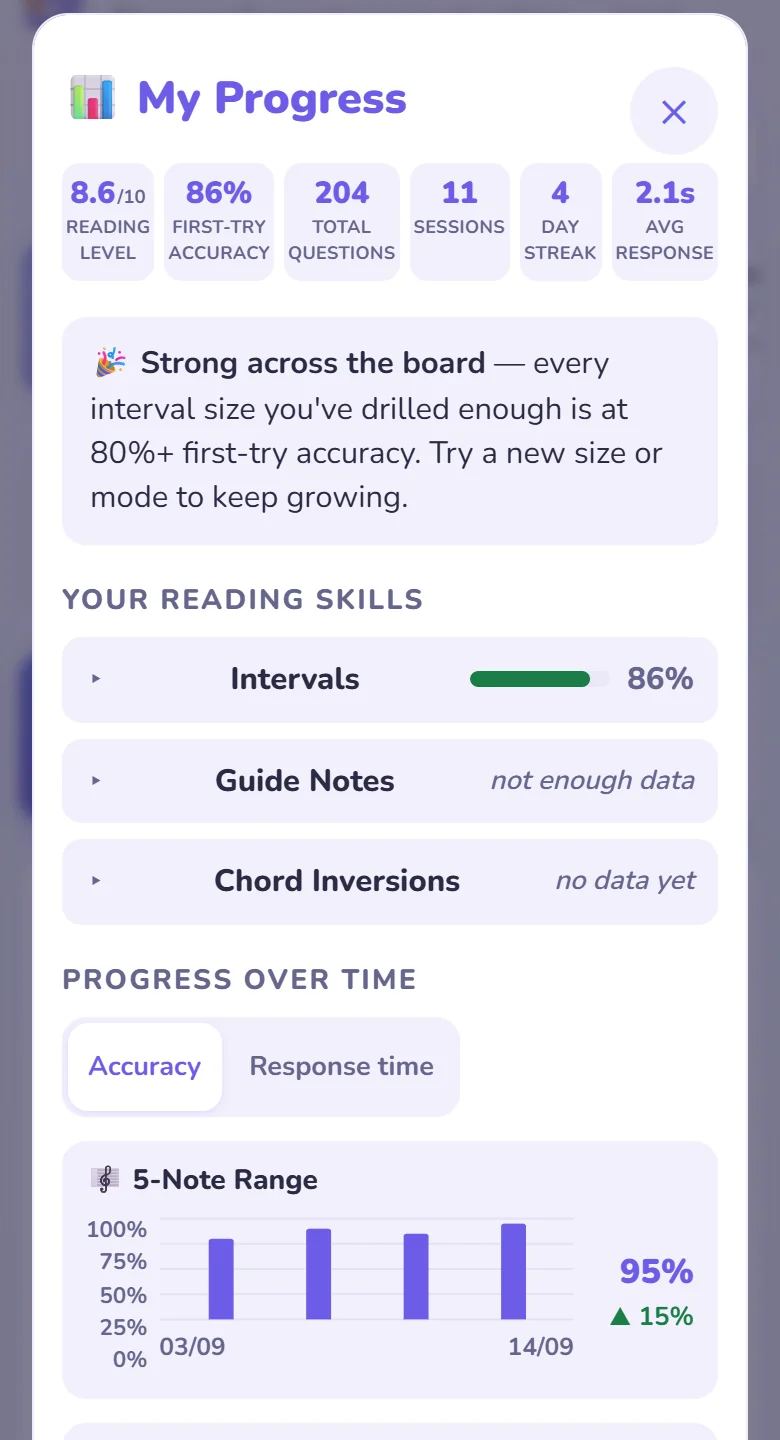
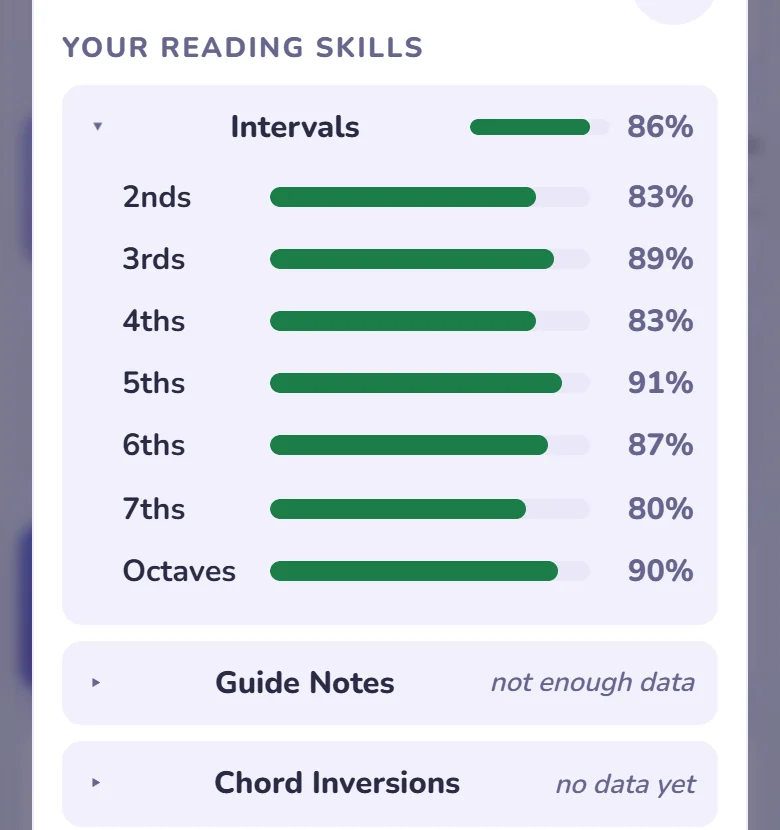
Three groups — Intervals, Guide Notes, Chord Inversions. Tap one for a bar per interval size, landmark or inversion (needs 5+ first-try answers to count).
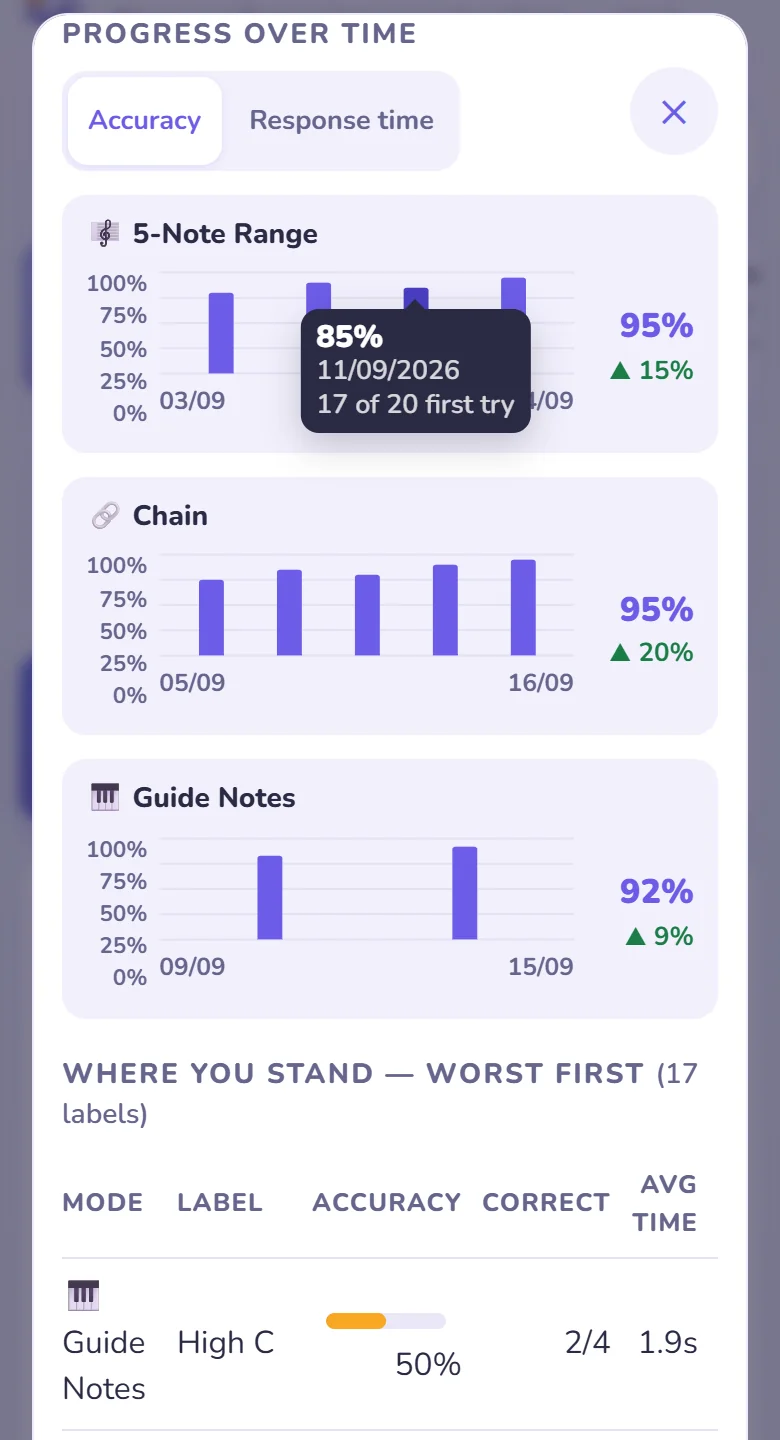
One chart per mode, one bar per practice day, switching between Accuracy, Response time and, once unlocked, ⚡ App score. Tap a bar for the exact figure and date; below is a worst-first table and a day-by-day log.
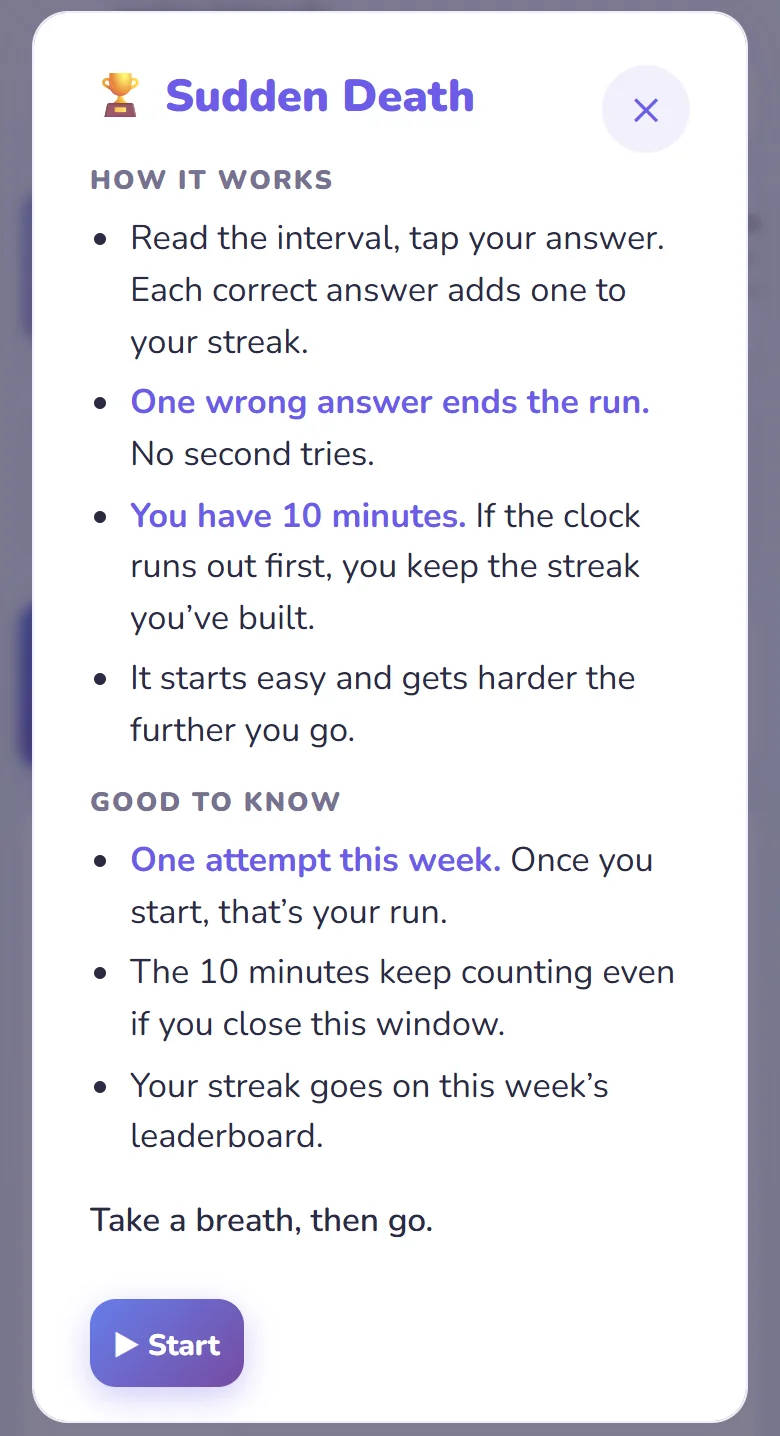
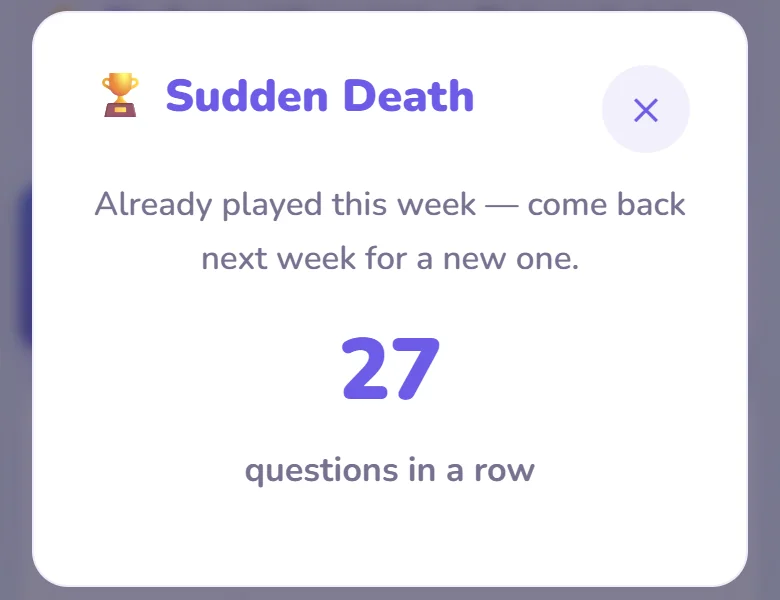
One fixed, server-graded question set each week, identical for everyone, one attempt Monday to Sunday. The format rotates through four: Sprint (2 minutes, most correct wins), Speed 30 (30 questions, fastest time: a wrong answer adds 5 seconds and, from 12/10/2026, a right one takes 1 second off, shown beside the clock), Sudden Death (first mistake or 10 minutes ends it) and The Full Sweep (40 questions across everything Game Mode has taught).
The first open each week shows this card. Nothing starts until you tap Start — that's your one run for the week.
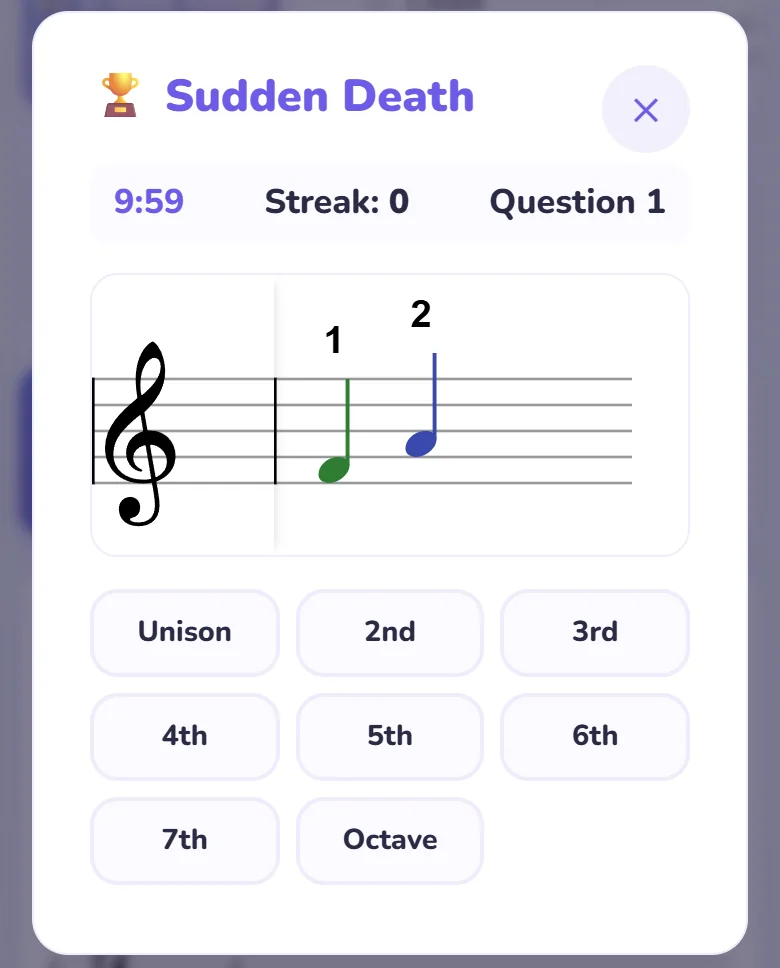
Looks like normal practice, clock/streak/count along the top. Only the first tap counts — no retries here.
One go a week, so warm up with normal practice first. Your result goes straight onto the leaderboard's challenge tab.
Ordinary practice that counts: 1 point per correct answer toward the week's leaderboard, plus a bonus for 75%+ or 90%+ sessions. Capped at 60/day — three short sessions beat one long one, and the board rewards the habit, not the binge.
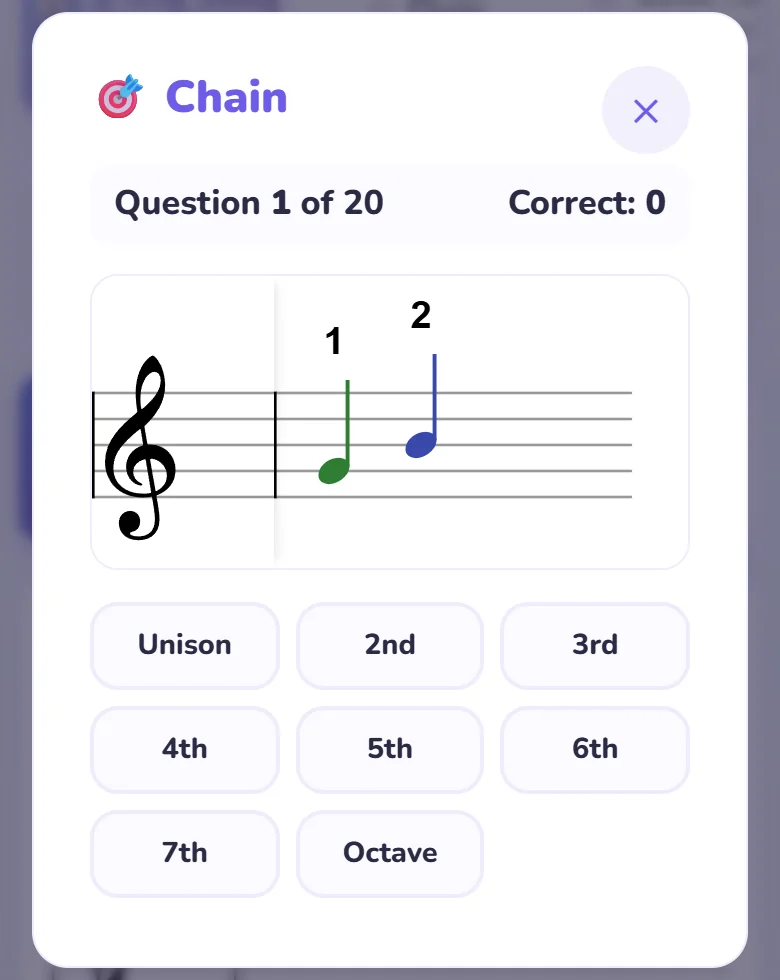
Chain, Guide Notes, Find the Start or Chord Inversions, 20 questions each.
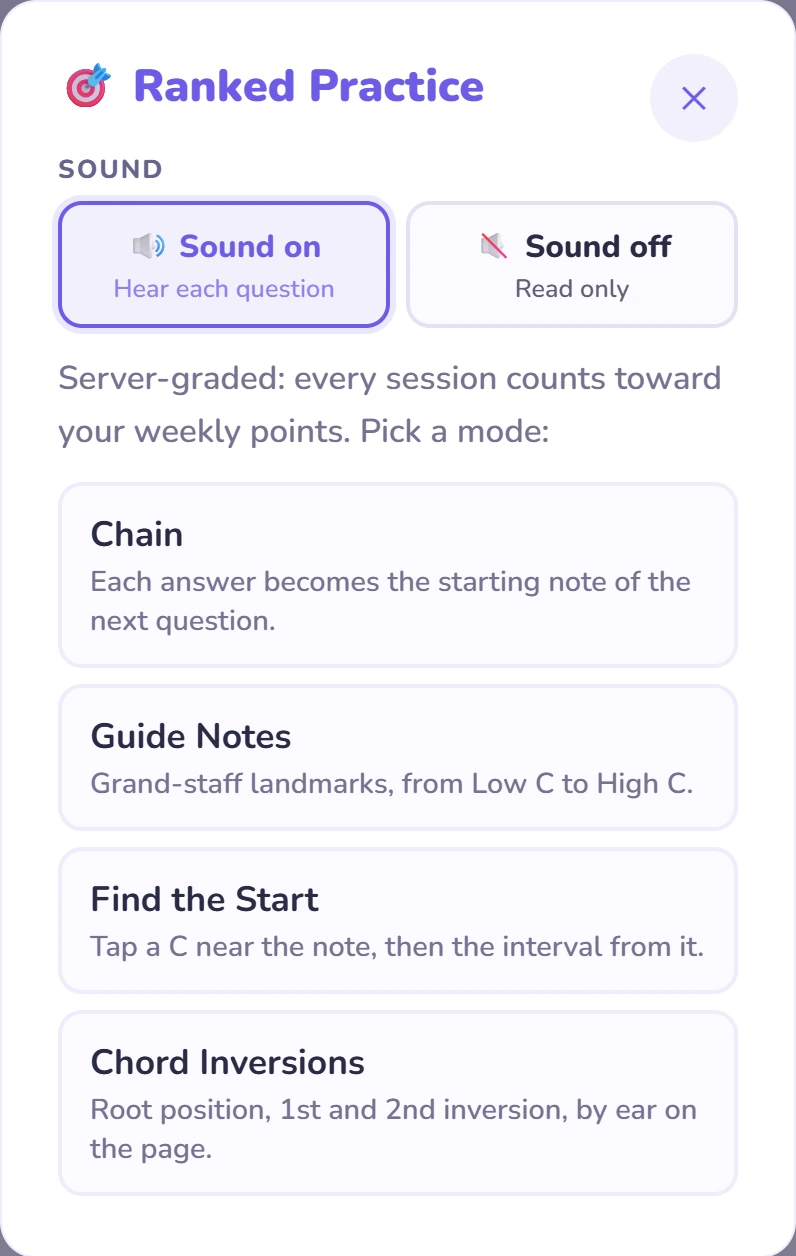
Same screen as the Weekly Challenge. Points bank only when question 20 is answered. Closed early? Pick the same mode again the same day to carry on where you stopped, or tap Resume on Home.
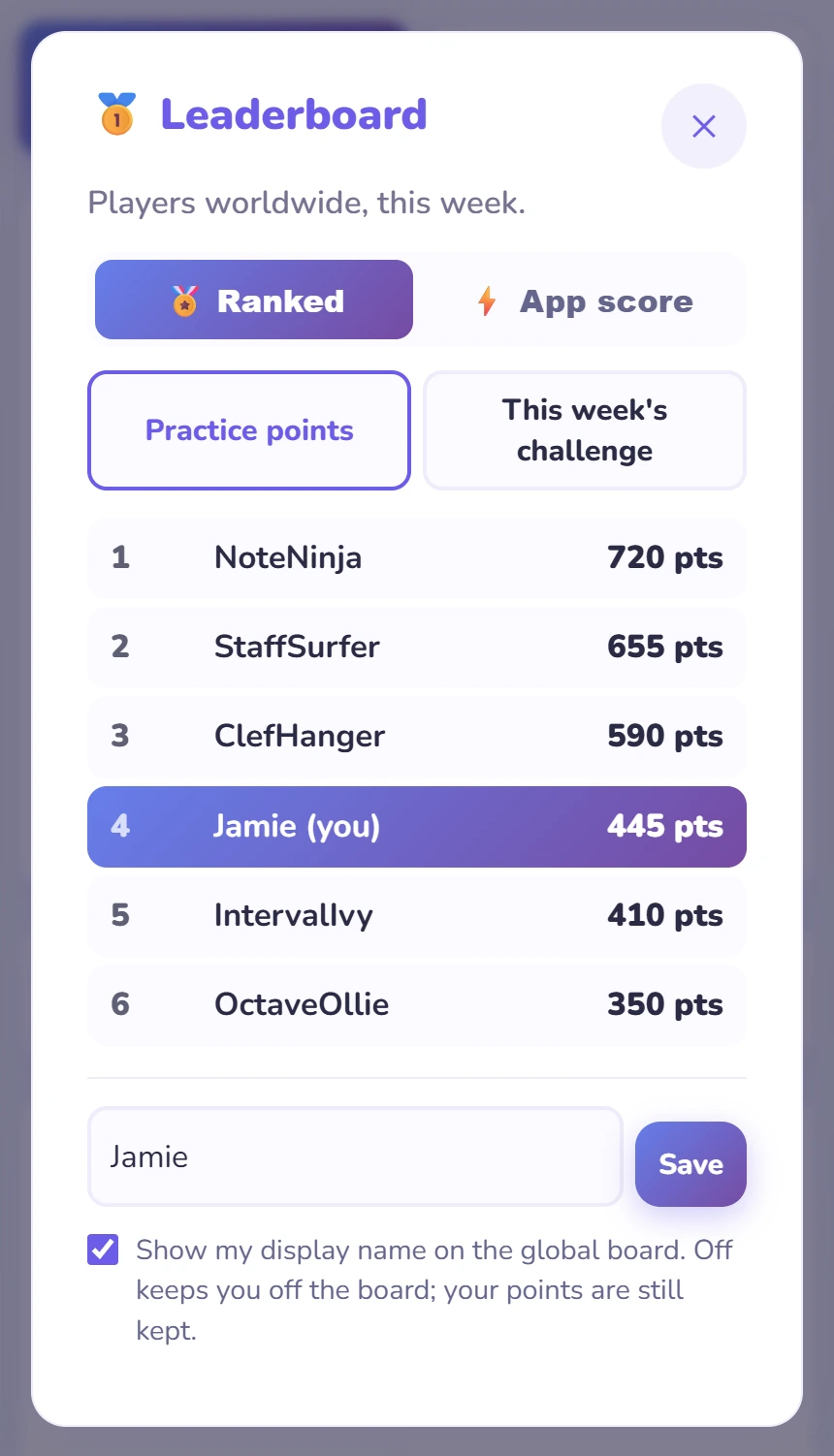
As a solo learner, your board is the global one: every opted-in player, this week only. It has two sides: Ranked, with the two tabs below, and ⚡ App score. Your own row is highlighted, showing the top three plus the players around you.
The Practice points tab, ranked by this week’s Ranked Practice.
The second tab ranks the Weekly Challenge, in that format’s own units.
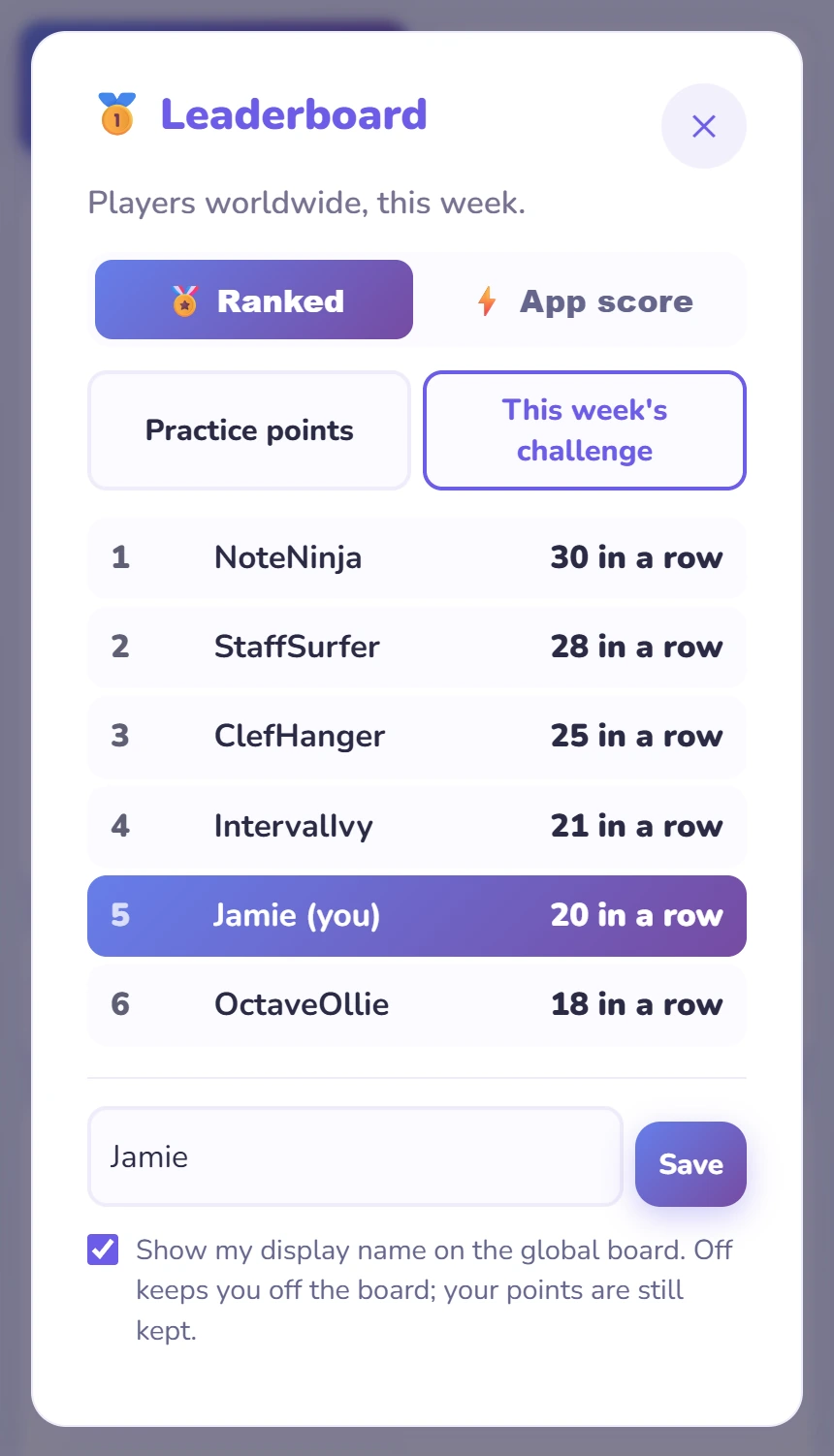
Tap ⚡ App score at the top to rank this week’s App score points instead. It also holds your on/off switch and your best sessions. See App score.
Two ways the app sums up progress over the long run: a Checkpoint measures it on a given day, a rank tracks it continuously.
A short check-in the app sets for you every so often: 50 mixed questions in 18 minutes, one go. Not a test you can fail — a snapshot across the three skills that matter most for reading at the piano. Checkpoints need Pro.
When one comes up. The first unlocks once a sub-level is passed in each of Guide Notes, Play the Note and Chord Inversions. After that, every 5 further sub-levels — or every 5 sessions once Game Mode is finished. Questions are always set at the hardest sub-level passed, so it's always on material actually learned.
Appears on Home when a Checkpoint becomes available. Let me practice more puts it off with no penalty.
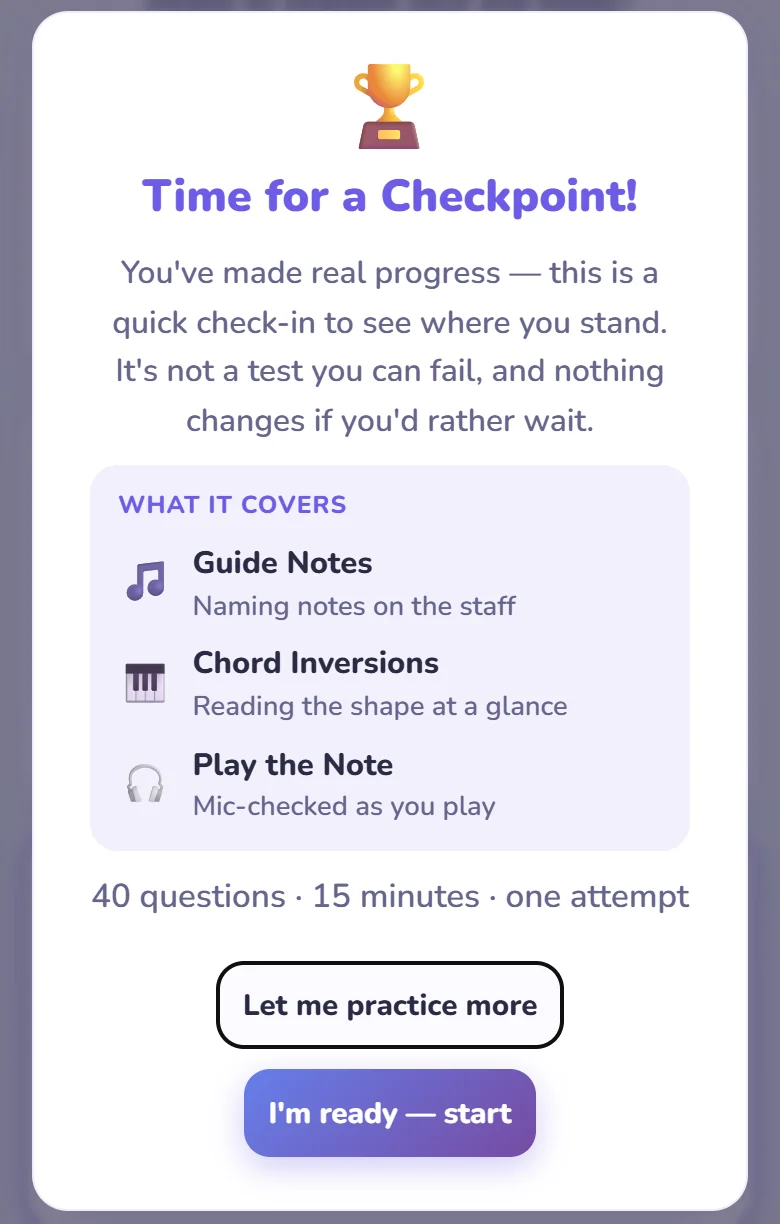
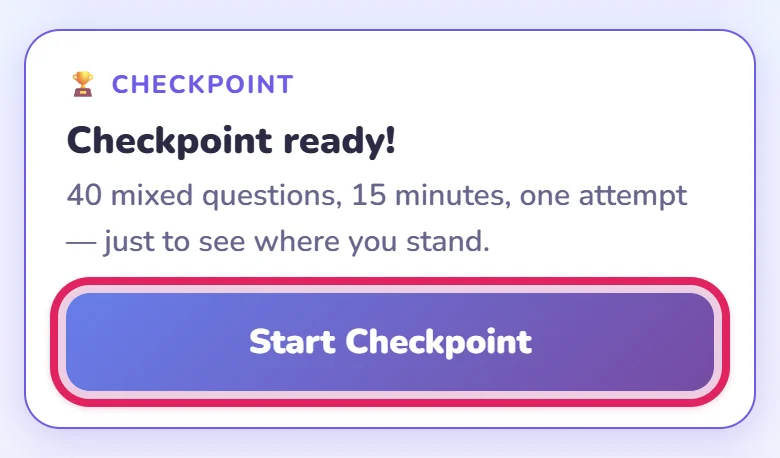
Shows what's needed before the first one, or how long until the next. When ready, tap Start Checkpoint.
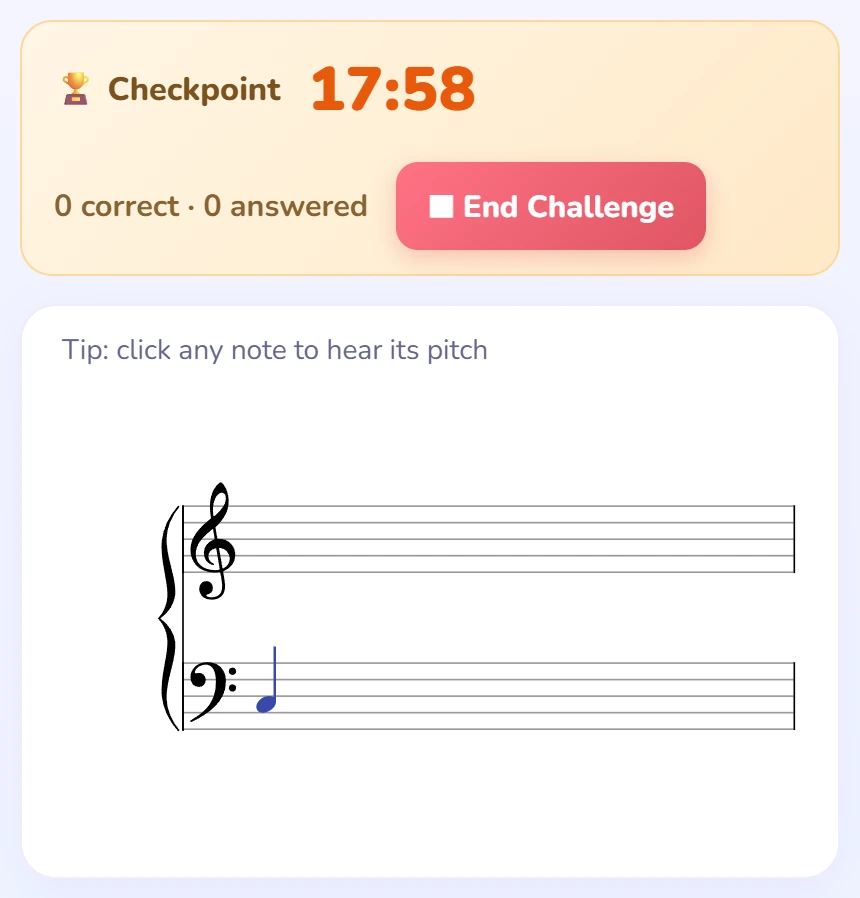
13 Guide Notes, 10 Find the Start, 13 Chord Inversions, then 14 Play the Note questions, one 18-minute clock. Each section starts on a clean staff, the numbering carries on, and the question you’re on is the blue note. Only the first answer counts, and the score is kept whether time runs out or not.
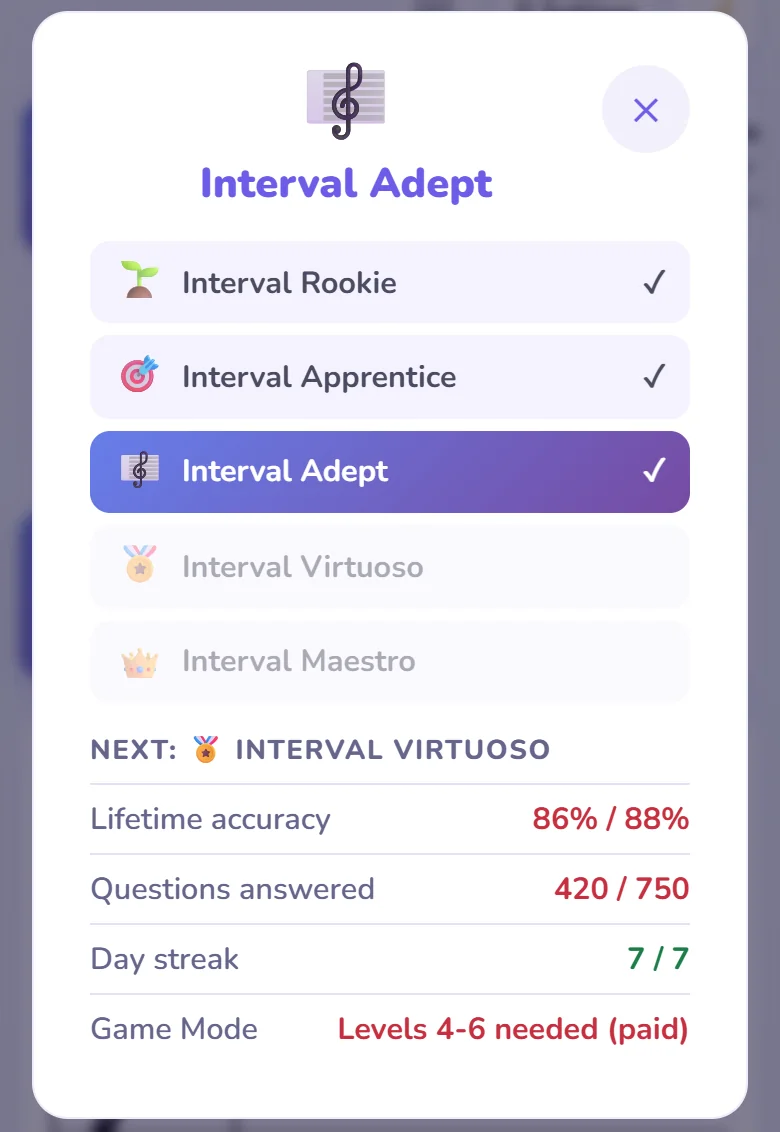
Your rank shows how your reading is going overall, from 🌱 Interval Rookie to 👑 Interval Maestro — worked out from lifetime accuracy, questions answered, and practice streak. Keep all three moving and you climb; let the streak lapse and you can slip back. Unlocks once Levels 1–3 are passed.
| Rank | First-try accuracy | Questions answered | Day streak | Also needs |
|---|---|---|---|---|
| 🌱 Interval Rookie | Game Mode Levels 1 to 3 passed | |||
| 🎯 Interval Apprentice | 75% | 100 | 2 days | |
| 🎼 Interval Adept | 82% | 300 | 4 days | |
| 🏅 Interval Virtuoso | 88% | 750 | 7 days | All 7 Game Mode levels (Pro) |
| 👑 Interval Maestro | 93% | 1,500 | 14 days | All 7 Game Mode levels (Pro) |
Sits in the header next to the app name once unlocked. Tap it to open the ladder.
All five tiers, current one highlighted, with the exact numbers still needed for the next: green if met, red if not.
One panel to shape a session — clef, interval size, direction, question count — showing only what your mode needs. Changes wait for Apply, and it resets to defaults each time you open the app, so experiment freely.
Tap Settings in the header, between the menu button and the theme toggle. Tap again, or anywhere outside, to close it — or press S on a keyboard.
Always in the header, in every mode. It lights up while the panel is open.
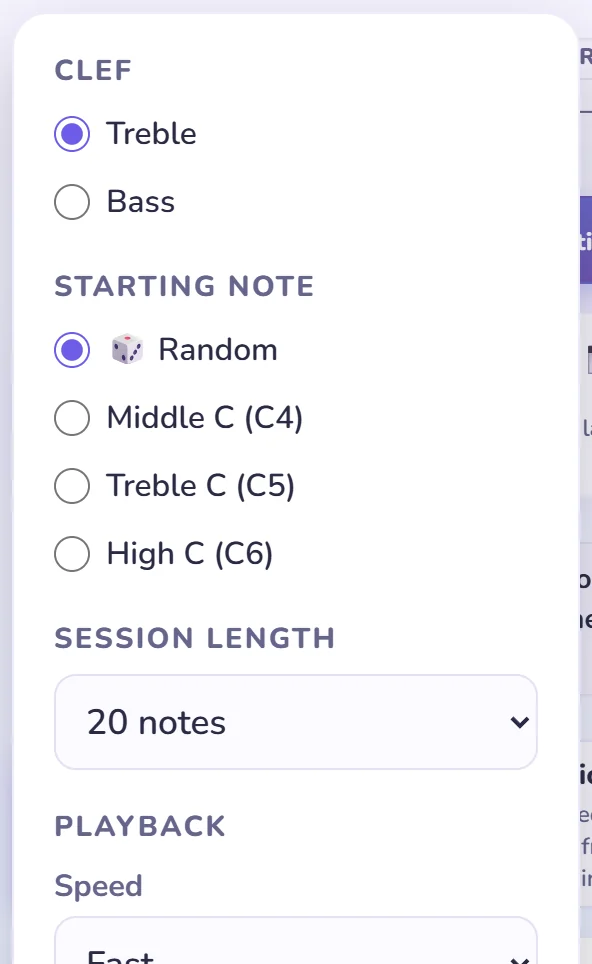
The top changes per mode; Playback, Difficulty and Display at the bottom stay the same everywhere.
Clef: treble or bass. Starting Note: Random or a fixed landmark. Session Length: 10, 20, 50 or Unlimited.
Interval Range sets the smallest/largest interval (default Unison–5th); Direction limits jumps to Up, Down or Both. Same two controls apply in Play the Note when using Chain.
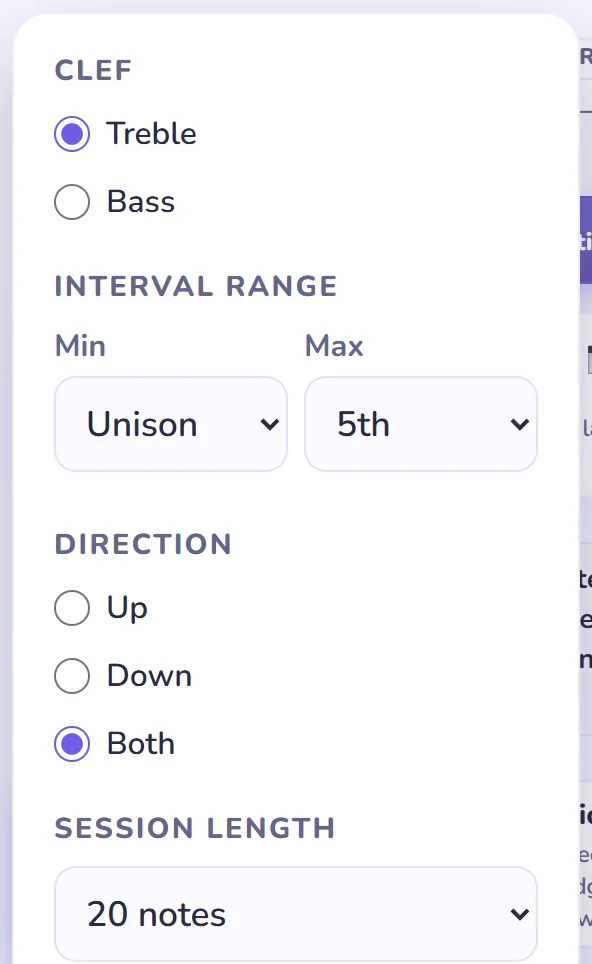
Chord Type switches triads to 7th chords (adds a 3rd inversion). Guide Notes has no controls of its own beyond Session Length.
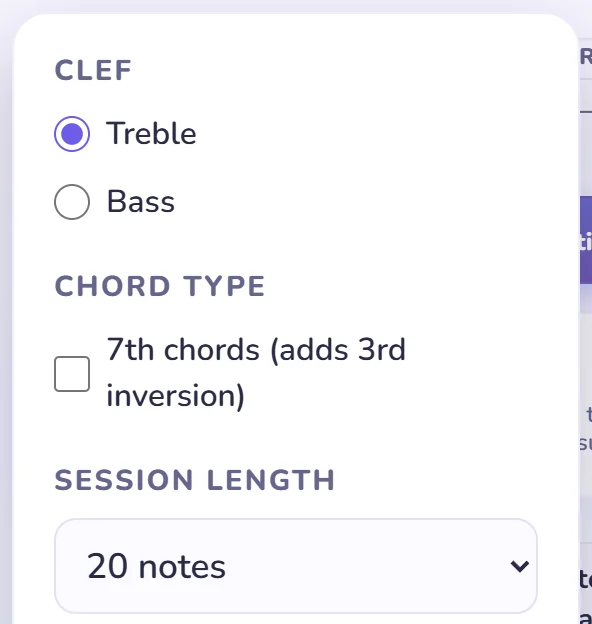
Playback: untick Play sound to silence auto-play and the ▶ button — clicking a note on the staff still plays it, since that's a deliberate check, not the app giving away the answer. Difficulty: Adaptive asks more of the sizes you get wrong most. Display: untick Show notes on staff to answer from sound alone (needs Play sound on) — a reading drill becomes ear training.
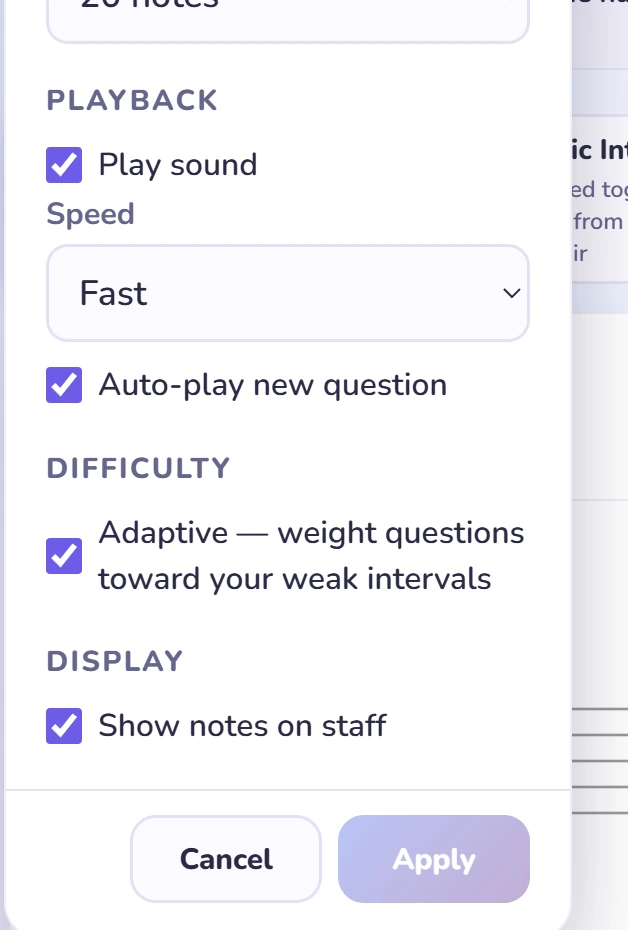
A changed control doesn't take effect until Apply, which only lights up once something's changed.
Tap Apply: the panel closes and a fresh session starts on the new settings. On Challenge, Apply just sets the values — press Start when ready.
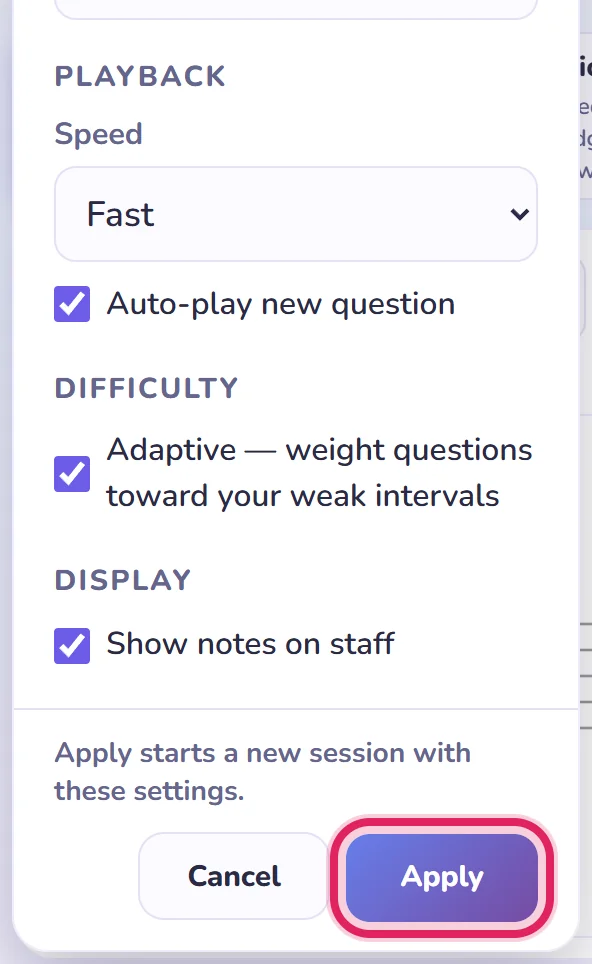
Reverts every control and leaves the current session untouched. Tapping outside with unapplied changes asks first, so a stray tap can't lose or apply them by accident.
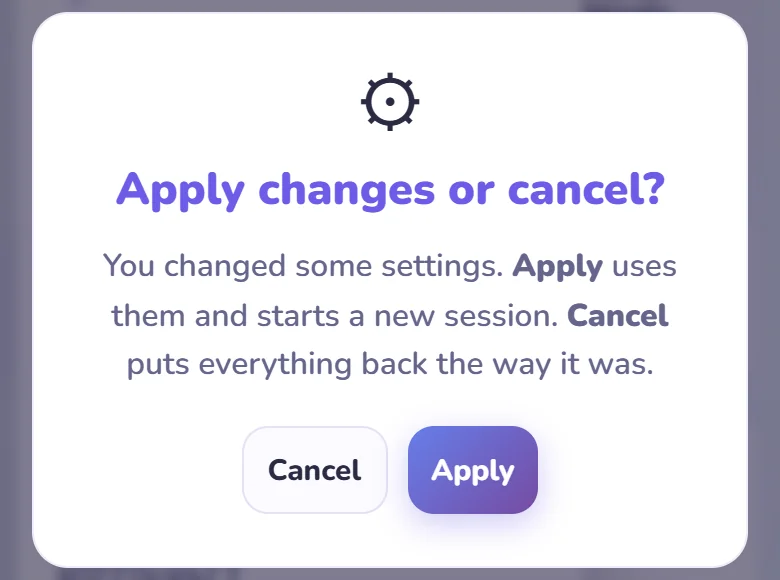
During a timed run (Challenge or Checkpoint), Apply stays off until you finish or end it.
Start with the simple checks.
MIDI is another option on a computer with a compatible keyboard.
Release the pedal and let the previous sound fade, and check the octave as well as the note name. In Chord Inversions, roll the chord slowly from the bottom up.
Use Forgot your password? on the login page — only works if you added an email, which is why doing so early is worth it. Without one, a lost password can't be recovered.
No — Levels 1–3 are free, with a daily allowance outside Game Mode. Upgrade to Pro for Find the Start, the timer, Play the Note, Chord Inversions, App score and no cap. See Free and Pro.
Whether you got each note right on your first try. Fix a wrong note afterwards and you should — it's how you improve — but it won't change that question's score.
If the message mentions Fortinet, a school or office firewall is inspecting web traffic and Chrome refuses to trust it. This is not the app, and every secure site on that network is affected. Switch to mobile data or home Wi-Fi, or ask IT to allow interval-hero.app. Avoid tapping Advanced and proceeding: that lets the firewall read your login.